Since the July release notes, Slek has had a makeover! If you have opened the app in the last few days, you cannot have missed the new colours.
But most of this autumn’s work is elsewhere:
- a new workout editor, with snippets of text that you reuse from one workout to the next;
- a fully redesigned training zones screen;
- PDF printing for your workouts.
Shall we take a look?
1 - Slek gets a makeover 🎨
On a computer, your pages are where they have always been: it is mostly the colours, the shape of the buttons and cards, and the sport icons that change, in light and dark mode alike.
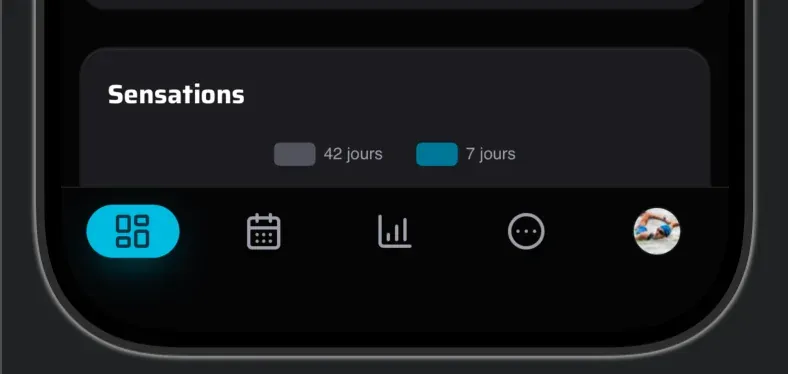
On a phone, the change is more visible: the header and its menu make way for a tab bar at the bottom of the screen, under your thumb. The dashboard, the calendar and the statistics are one tap away, More opens every other page, and your avatar opens your profile, where coaches switch between athletes and squads and everyone can sign out.
The System theme is new too: in Settings > Profile & display, Slek can now follow the light or dark setting of your phone or computer. It is the default for new accounts.
2 - A new workout editor ✍️
A planned workout now opens as a full page instead of in a window, on both computers and phones. You have all the room you need to write, and the ‹ Calendar button takes you back to where you were. Save closes the workout, and the Ctrl+S shortcut (⌘S on a Mac) saves without closing it.
Above the description, a toolbar formats your text (headings, bold, lists, links…) so you do not need to know the Markdown syntax.
Snippets: your usual text one click away
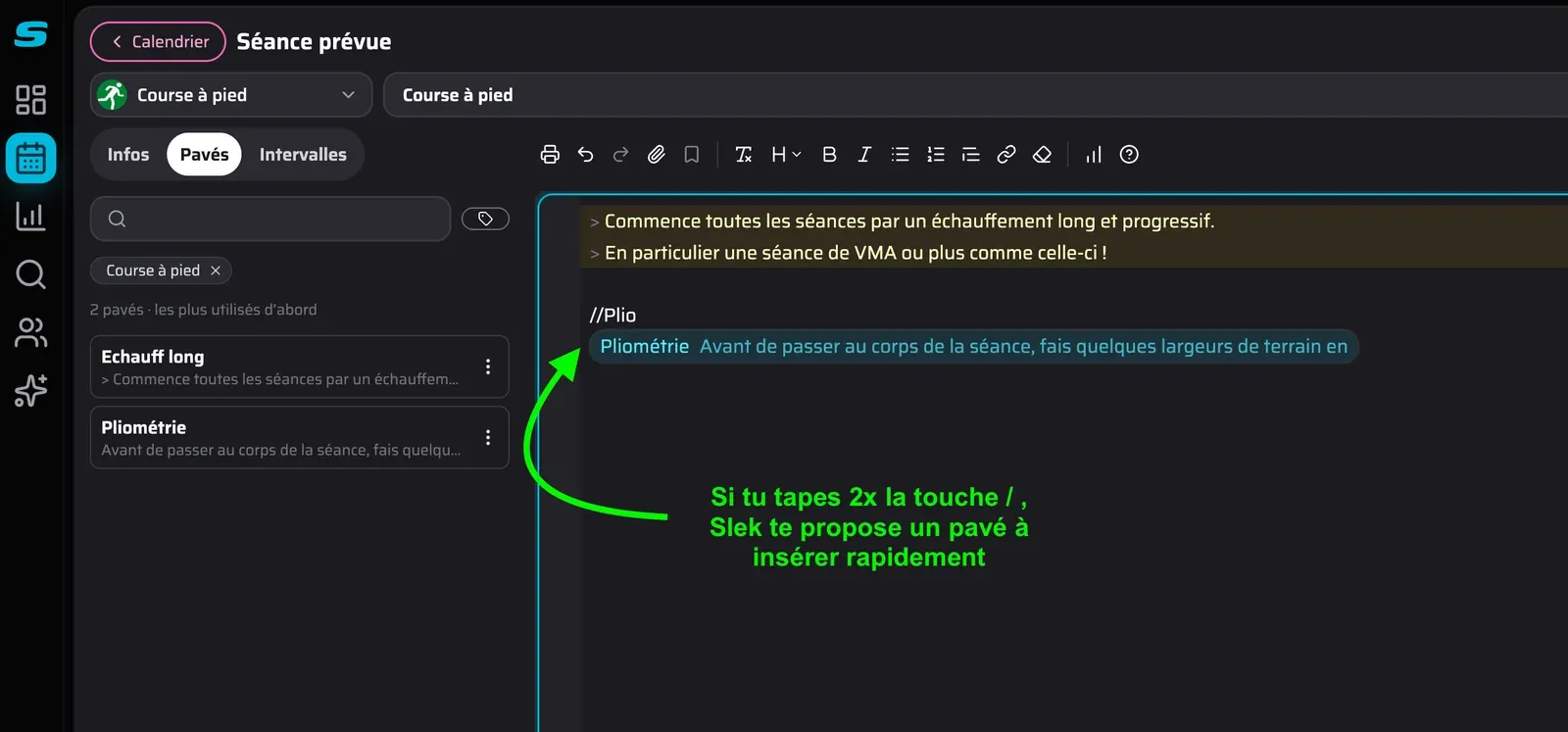
Do you keep typing the same warm-up, the same instructions or the same reminder before a key workout? Select that text once, then click the bookmark in the toolbar to save it as a snippet.
Your snippets follow you into every workout you write, whatever the calendar: yours, an athlete’s or a squad’s. The Snippets tab lists them, most used first, and their tags (a sport, for example) help you find them.
Without leaving the keyboard: type
//at the start of a line and pick your snippet from the list.
Intervals ready to insert
The Intervals tab adds blocks to your guided workout without you writing any syntax. Slek intervals offers ready-made blocks with the target of your choice (RPE, HR, speed or power, as a %, in zones or as values), and My intervals keeps your own: select lines of a guide, then add them with the bookmark.
In the text of a guide, each line also has an Adjust button in the margin (or Alt+Enter) to change its duration, distance or target. And July’s graphical builder finally accepts steps shorter than 15 seconds.
On a phone, Edit opens the description full screen, and the Insert button gives you the same intervals and snippets.
Everything is explained in the help page on planned workouts.
3 - Training zones that are easier to set up 📈
The Settings > Zones screen had become too complicated, so we redesigned it from scratch.
One value to get started
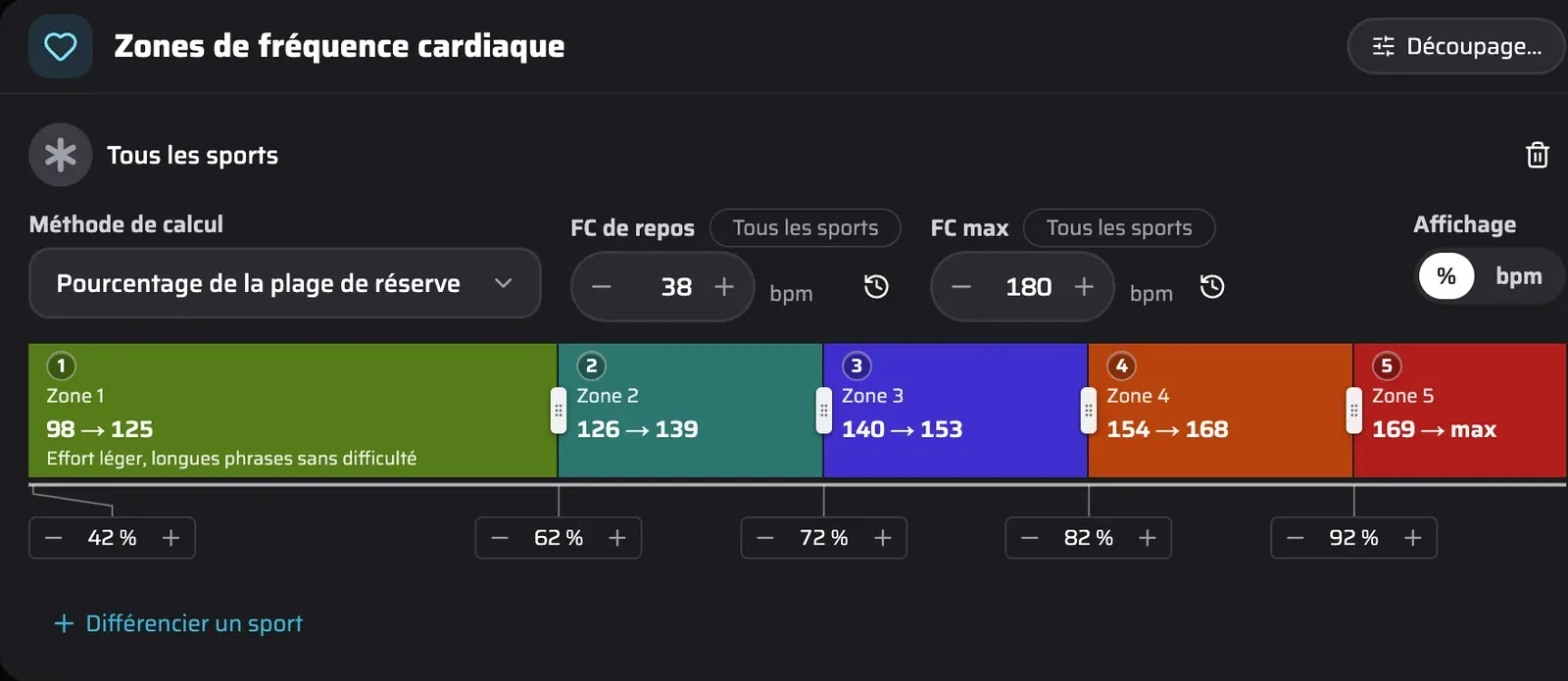
If you do not have any zones yet, Slek only asks for your max HR. Not sure of yours? Give your year of birth: Slek estimates it from your age and tells you that it is an estimate. Create my zones then gives you 5 heart rate zones that work for every sport, which you can adjust however you like.
Everything in one place
Each zone configuration fits on three lines:
- the calculation method (a percentage of your max HR, of your heart rate reserve, of your threshold speed… or fixed values), with the metric it uses right next to it;
- the zone rail, where you read the actual values of each zone;
- the bounds, which you drag with the mouse or set with the − and + buttons.
When you change a metric (your max HR after a test, for example), Slek asks since when the new value has been valid: since the start, since today or since the day of the test. The old values stay in the history, and if the change affects past activities, a banner offers to recompute the time they spent in each zone.
The Split… button sets the number of zones (from 2 to 10), their names and the sensations expected in each one. You can also start from a well-known template: Coggan, Friel, Seiler’s polarised model, the Norwegian scale…
Finally, there is no “Save” button on this page any more: every change is saved straight away, and Ctrl+Z undoes it.
Do your HR zones use your resting HR (heart rate reserve)? The resting HR that Garmin measures varies a lot from one day to the next. You can now turn off just that import and keep the rest of your Garmin daily metrics, in Settings > Data synchronization.
All the details are in the zones help page.
4 - Print your workouts 🖨️
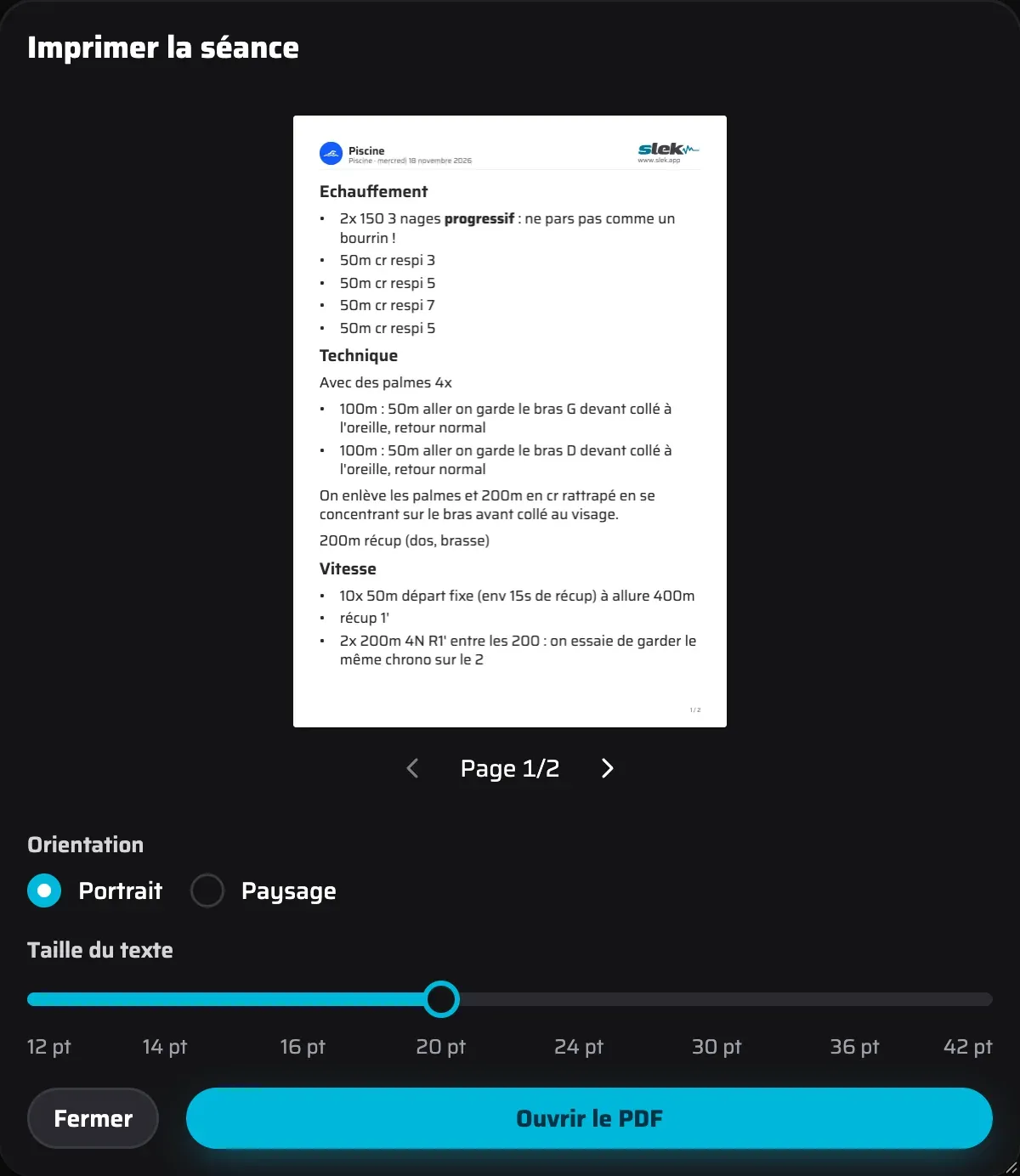
To have your workout in front of you by the pool (in a plastic sleeve, to be on the safe side) or on your handlebars when you ride the turbo trainer, you can now print it to PDF:
- one workout: the Print button in the description toolbar (in the workout’s ⋮ menu on a phone);
- several workouts: Print… in the week’s ⋮ menu, then tick the workouts to print.
You then choose the page orientation, the text size and whether the targets appear, with a preview of the first page before you open the PDF.
5 - Other improvements, in no particular order
🎯 Time spent in the target zone
When a planned workout targets a heart rate, speed or power zone, the completed activity’s window shows, in the matching tab, the time spent in the target zone and its share of the workout (for example, 41 minutes out of 58, i.e. 71%).
📊 Your weight or HRV in the week stats
A daily metric (weight, resting HR, HRV, sleep…) can now appear in the Week stats tab of the calendar. In Settings > Daily data, turn on Shown in the weekly stats in that metric’s settings, then choose the value kept for the week: the average, minimum, median or maximum.
💬 From a comment to its workout in one click
In the Week comments tab, to the right of the calendar, clicking a comment opens the workout it belongs to and takes you straight to its comments, so you can reply with the workout in front of you.
🫁 A scale for rating your effort
If you rate your perceived effort from 1 to 10, an ⓘ button now shows the full scale, with what each score means for your breathing. At 3 (“Moderate”), you breathe faster and chat easily; at 7 (“Very hard”), you say three or four words at most. The button is there when you rate a completed workout, and next to the expected effort of a planned workout. To find out more: what is RPE?
⚡ N power, lap by lap
In an activity’s laps table, every lap now has its N power, including after an Auto-lap split.
📬 What’s new, in your inbox
To get Slek’s news by email (4 to 12 emails a year), turn on the newsletter in Settings > Notifications. You can unsubscribe whenever you like.
More articles you might like
Release notes: July 2026
It has been busy at Slek since June, with two new features that change quite a lot: training squads and a graphical builder for guided workouts. Until now Slek offered individual coaching: one coach, one athlete, complete monitoring. That is perfect for personal support, but far too much for a club that simply wants to send Tuesday night's workout to its members […]
Release notes: April 2026
As you know, Slek changes almost daily, so we are not going to write a post every time. We do try to put together a regular summary, though, so you can see the improvements you might have walked straight past. 📆 A calendar that adapts to what you are looking for. If you use Slek on […]
Guided workouts and videos in the workout description
The workout description in Slek has just had a serious vitamin injection 🚀. Here is everything it can now do.